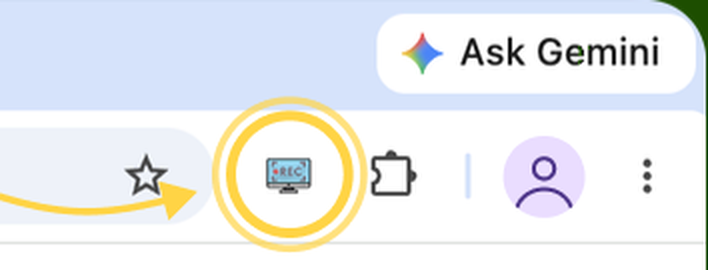
Click the toolbar icon
Or press Ctrl Shift S (⌘ Shift S on a Mac). A selection rectangle appears on the page you're looking at.
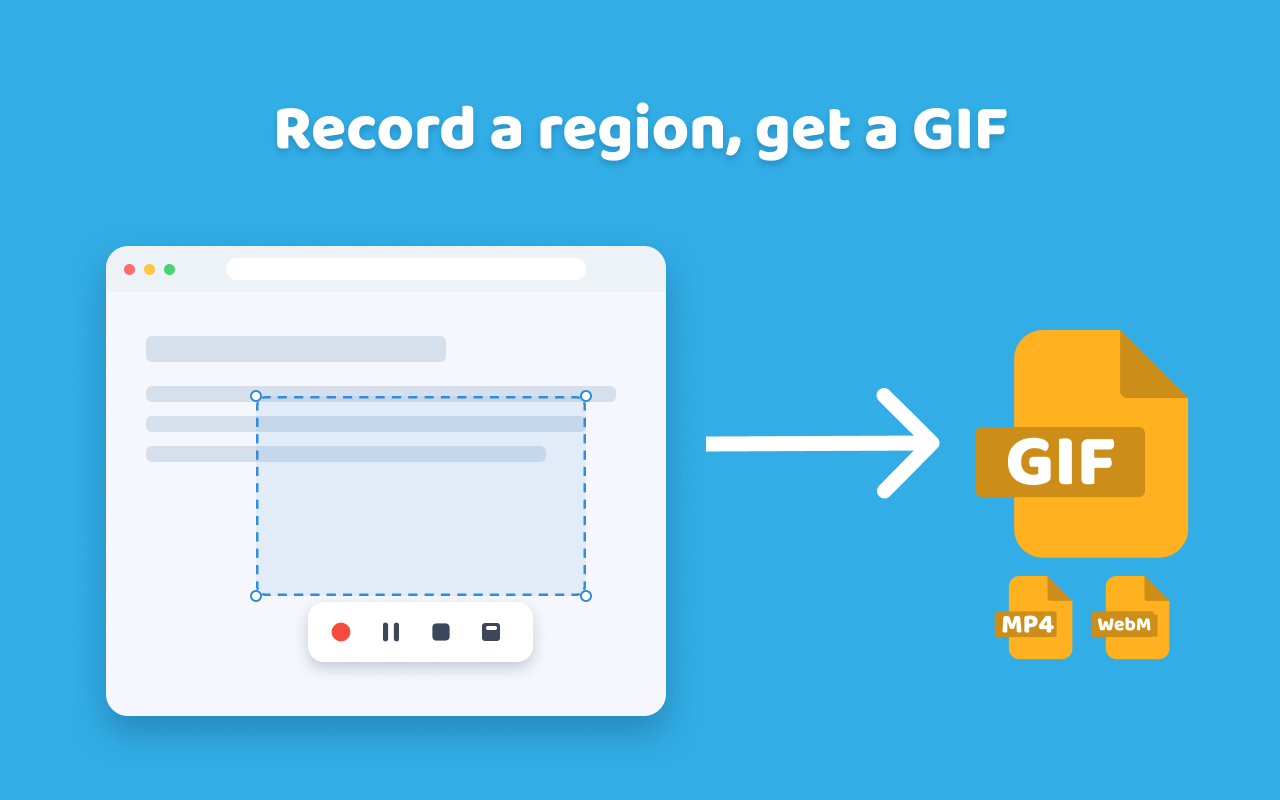
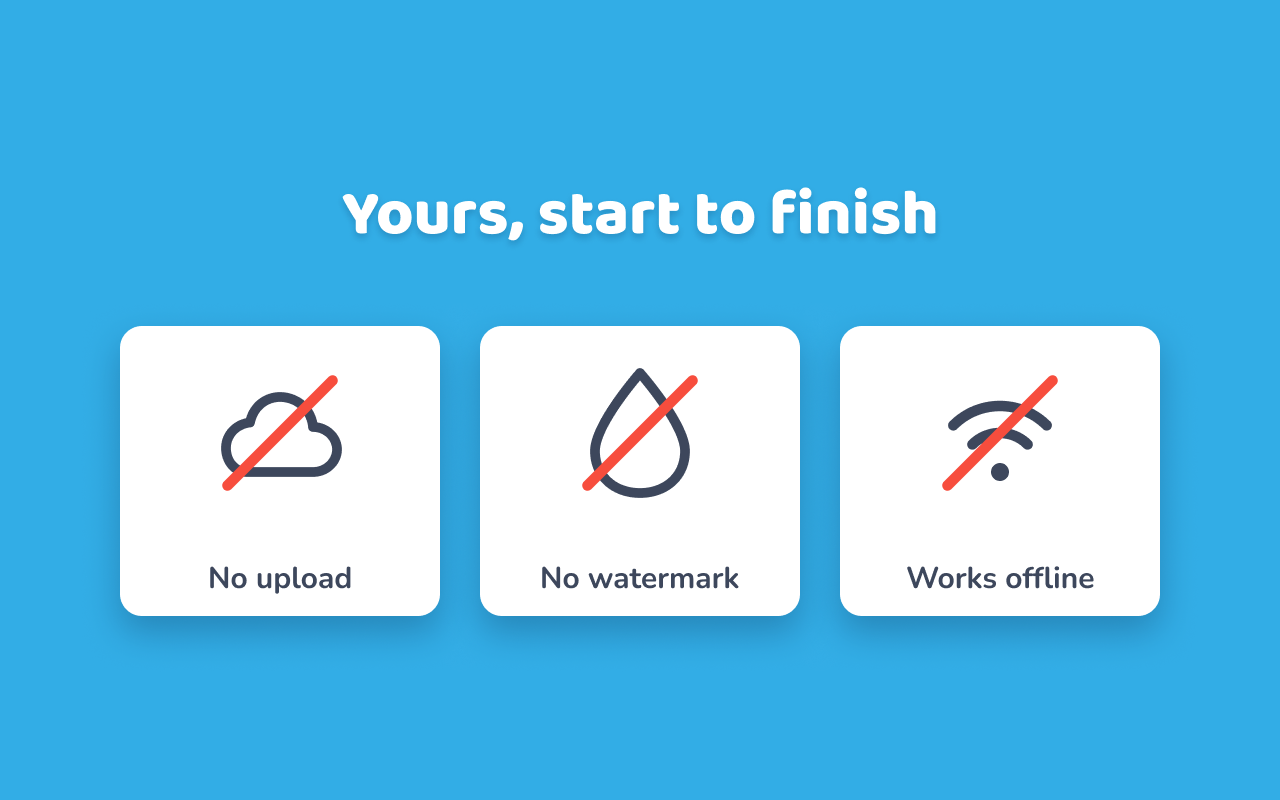
Turn any tab, window, or region into a shareable GIF, or an MP4 / WebM clip, in seconds. Trim, crop, and change the speed before you save. No upload, no watermark, no account required.
For Chrome 127 or newer on Windows, macOS, Linux, and ChromeOS. Everything stays on your computer.




Or press Ctrl Shift S (⌘ Shift S on a Mac). A selection rectangle appears on the page you're looking at.
Drag the rectangle over what you want to show, or type an exact size. Set the frame rate: lower for a small file, higher for a smooth demo.
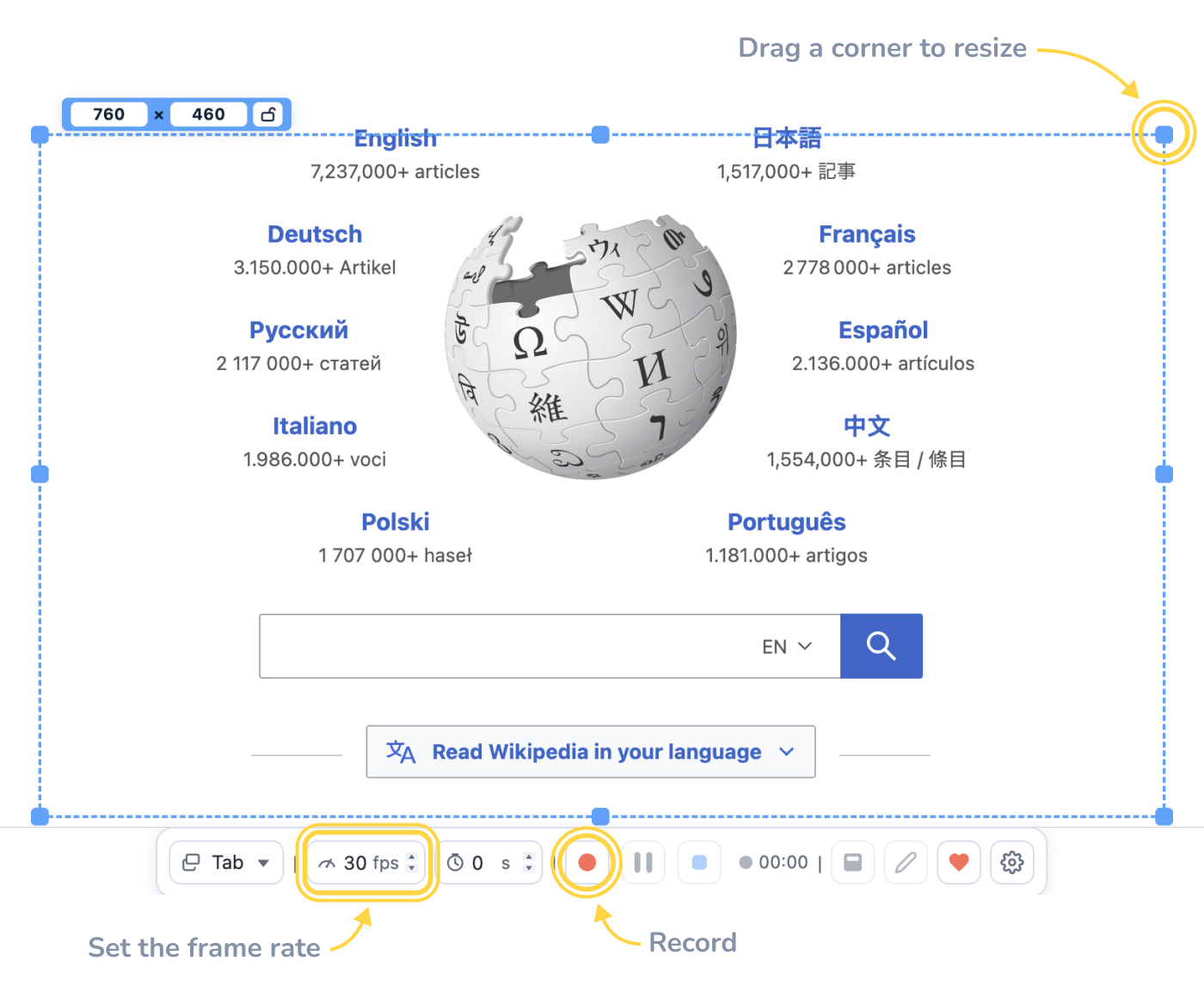
Press record, perform the action, and stop. Pause and resume as often as you need on the same clip.
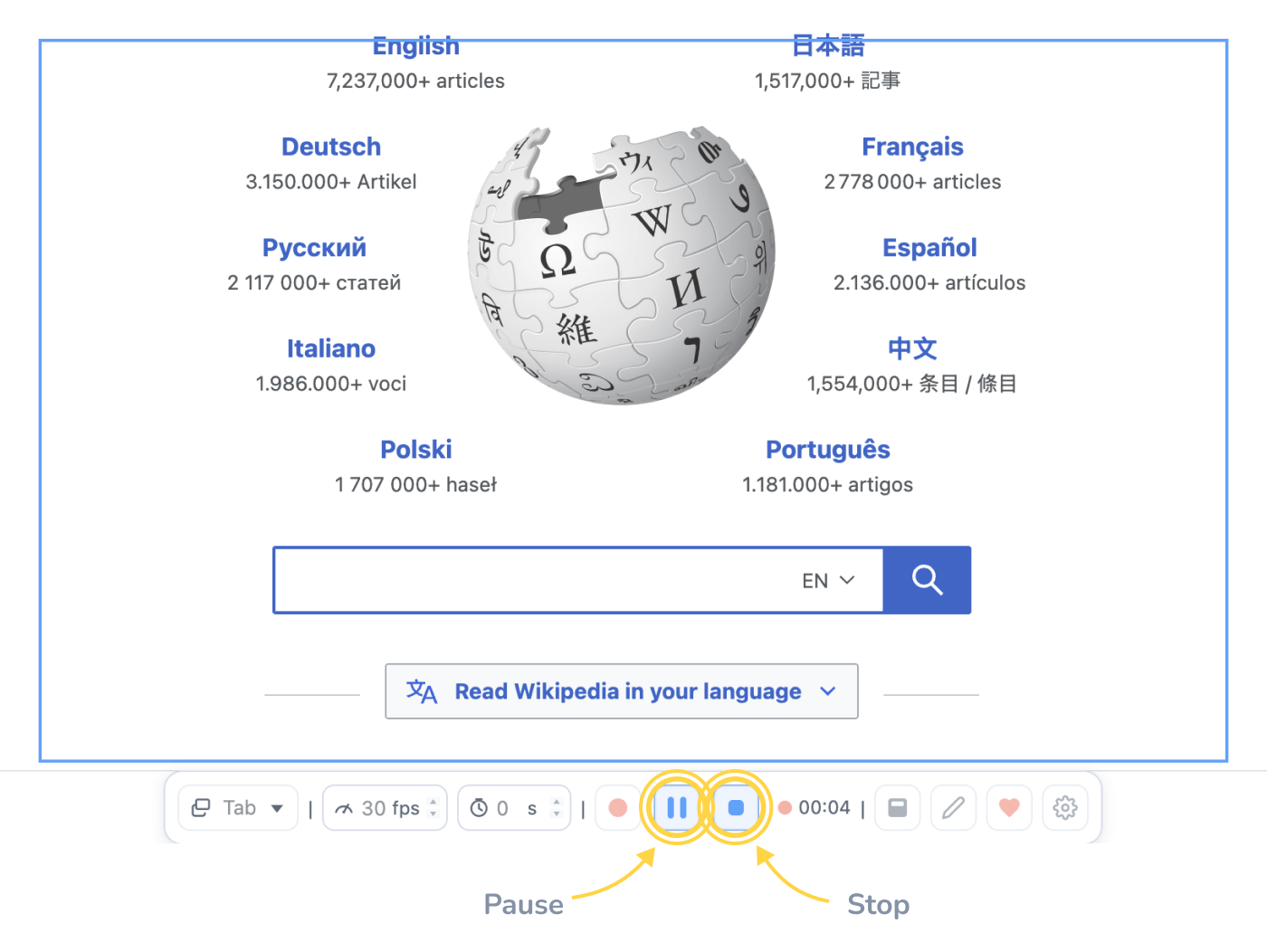
Scrub through the preview right there. Save the clip as it is, or open the editor to trim, crop, and change the speed before you export.
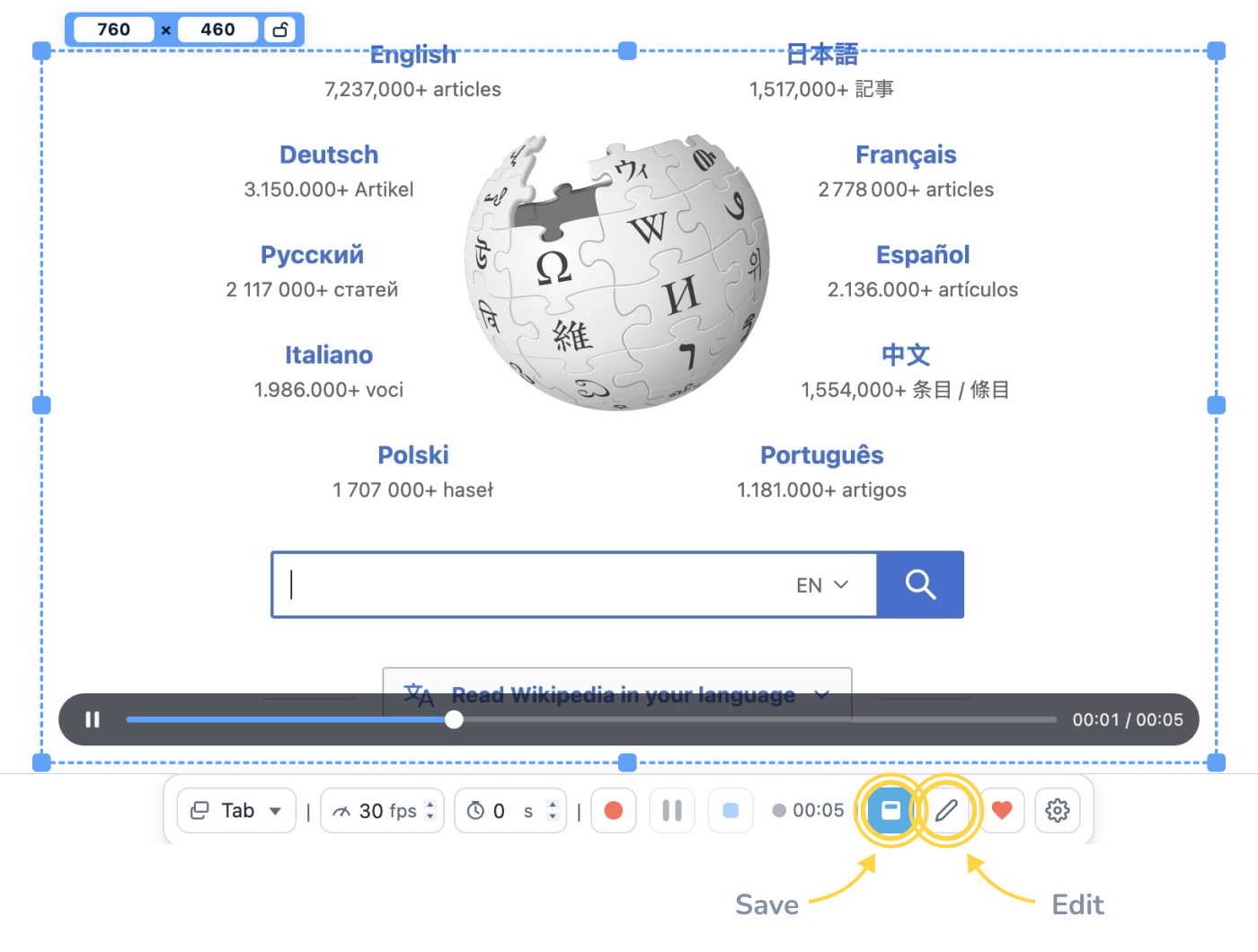
Pick what to capture, frame it, press record. Polish the clip if you want to, then save it straight to your downloads folder.
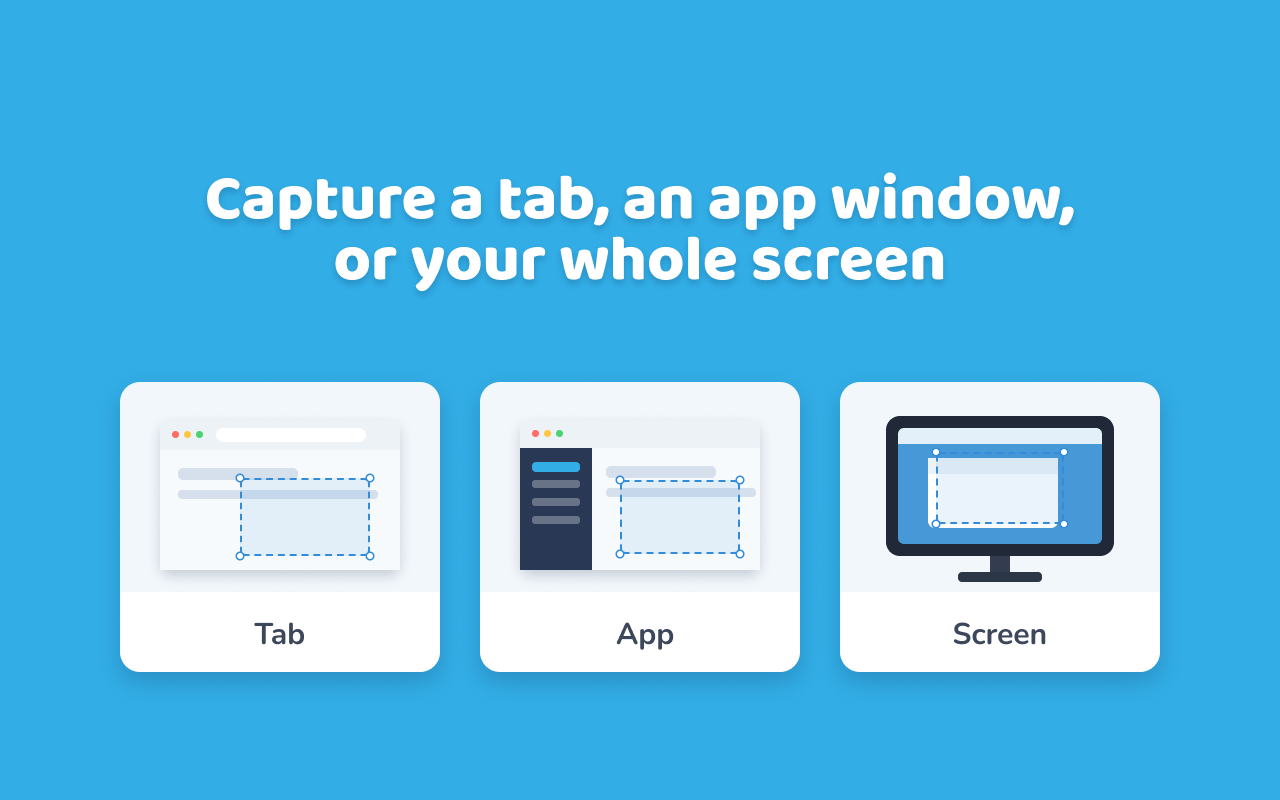
Record a single Chrome tab with its animations, hover effects, and scrolling, any open app window, or a region you draw on the screen.
Pause mid-recording, get the next interaction ready, and continue on the same clip.
Give yourself up to 10 seconds to get everything in place before recording begins.
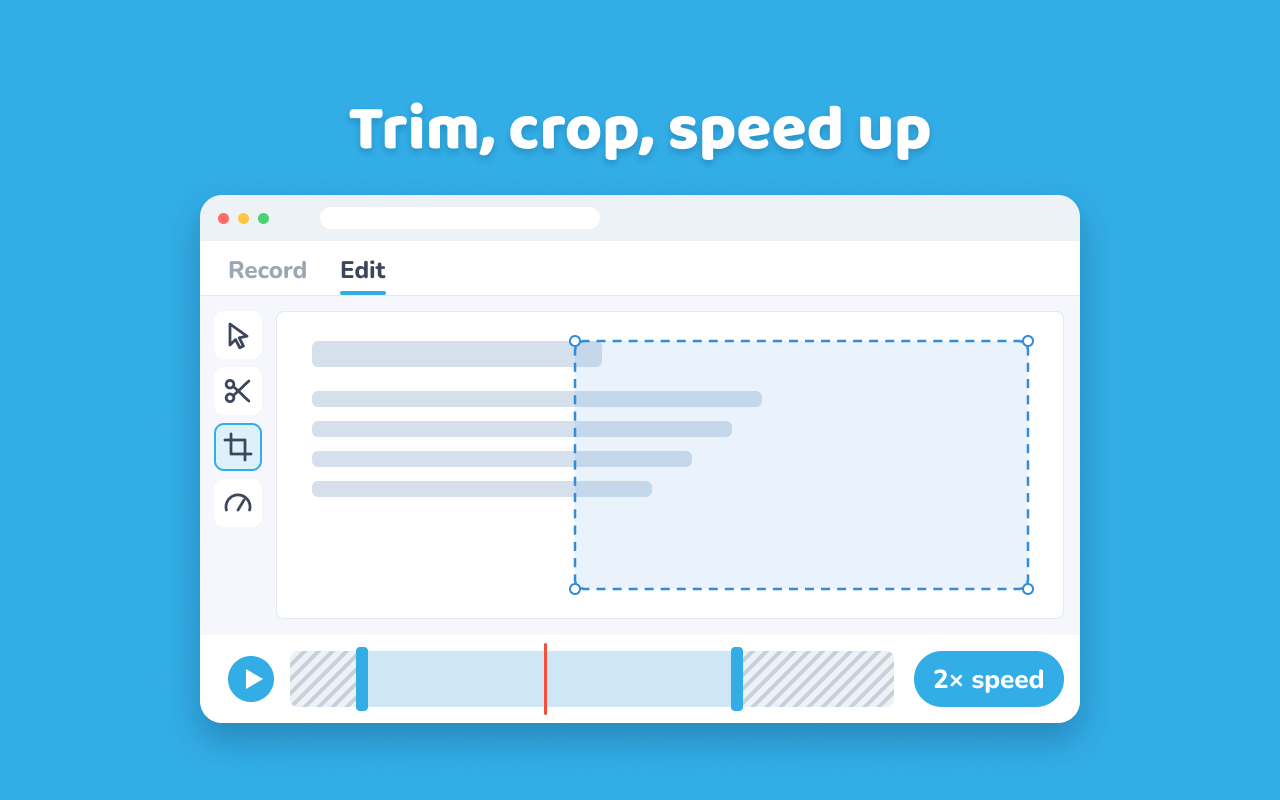
Trim the start and end with frame accuracy, crop to any part of the frame, speed the clip up to 4× or slow it to a tenth. Your original recording is never changed.
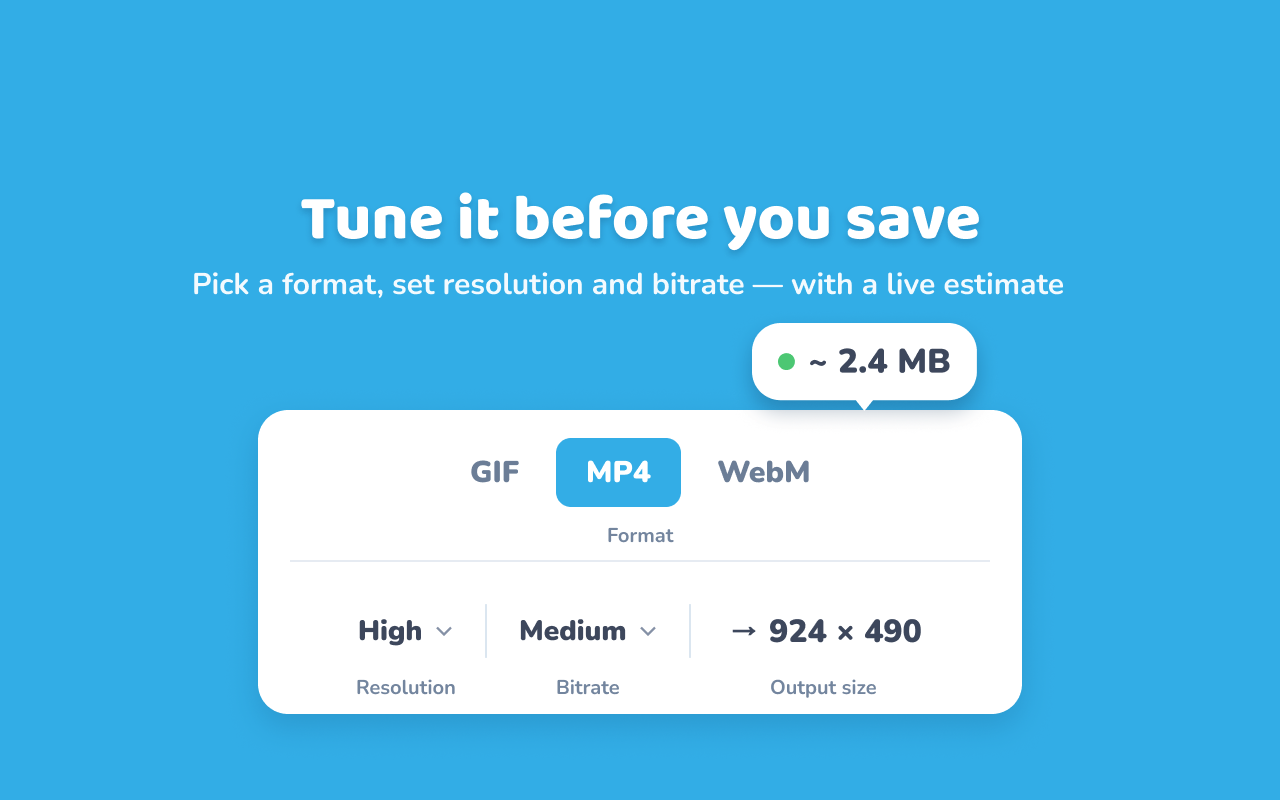
Choose GIF, MP4, or WebM, then set resolution and bitrate with a live estimate of the file size.
Recording, encoding, and export all happen locally. Nothing is uploaded, and recordings up to 24 hours are written to disk as they go.
No. This is an independent Chrome extension and is not affiliated with that Windows app. It runs in your browser on any system Chrome supports.
Yes. On a Mac, you get the same flow inside Chrome: select a region, capture it, then export. There is nothing to install beyond the extension.
Yes. Capture and encoding are local — the whole screen2gif workflow runs in your browser. You only need a network if the page you capture needs one.
No, not in this version. Recordings are silent, which is what most documentation and bug reports need.
Yes. Beyond recording GIFs, it works as an in-browser screen recorder: capture a tab, window, or region and export it as MP4 or WebM video.
Yes. Open a recording in the editor to trim the clip, crop the frame, or change its speed. Edits apply at export, so your original is never changed.
Lower the frame rate before you start, or pick a smaller output size when you save. The save dialog shows the estimated file size first.
Yes. Choose a light, dark, or system theme in settings, and the interface follows your pick or your operating system automatically.
Write to us and we'll get back to you. Include your Chrome version and what you were recording if it's a bug.
Enjoying it? A short review on the Chrome Web Store helps other people find it.